
WooCommerce speed optimization starts with measuring your product, category and cart pages on real mobile visitors, not just the homepage. The fixes that matter most are page caching that skips cart, checkout and My Account, a main product photo that isn't lazy-loaded, reserved space for galleries and review stars, deferred scripts, fewer fonts, and a server that answers fast on uncached pages. Make one change at a time on staging and re-test checkout after each one.
Most WooCommerce speed optimization advice is a list of plugins to install. After more than 400 client projects, most of them on WordPress and WooCommerce, I can tell you the slow part of a store is rarely something a plugin finds for you. It's a cookie banner queued behind 90 scripts, a product photo waiting for a gallery script, or a review widget making the server fetch files that don't exist. This guide is the process we actually follow to speed up WooCommerce, with the store-specific fixes a general slow WordPress checklist doesn't cover.
Why is WooCommerce speed optimization harder than a normal website?
A brochure site can serve almost every page from a cache. A store can't, and that's what makes WooCommerce performance different, because parts of it are personal to each shopper:
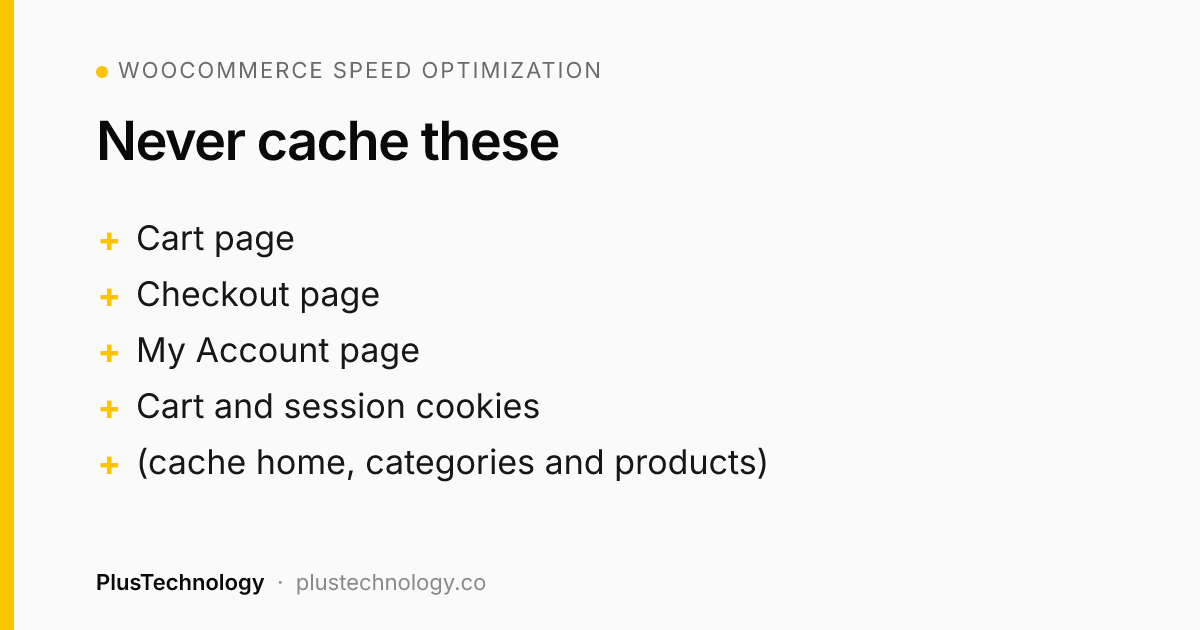
- Cart, checkout and My Account are dynamic. WooCommerce's own guide on configuring caching plugins says to exclude these pages and the cart and session cookies from the cache, so they are built fresh by PHP on every request.
- Product pages carry the most weight. Image galleries, variation scripts, review widgets, payment buttons and tracking pixels all load there, and that's where shoppers decide to buy.
- Stores change constantly. New products, plugin updates, seasonal banners and redesigns slowly undo earlier optimization.
That's why speeding up WooCommerce is more like maintenance than a one-off job.
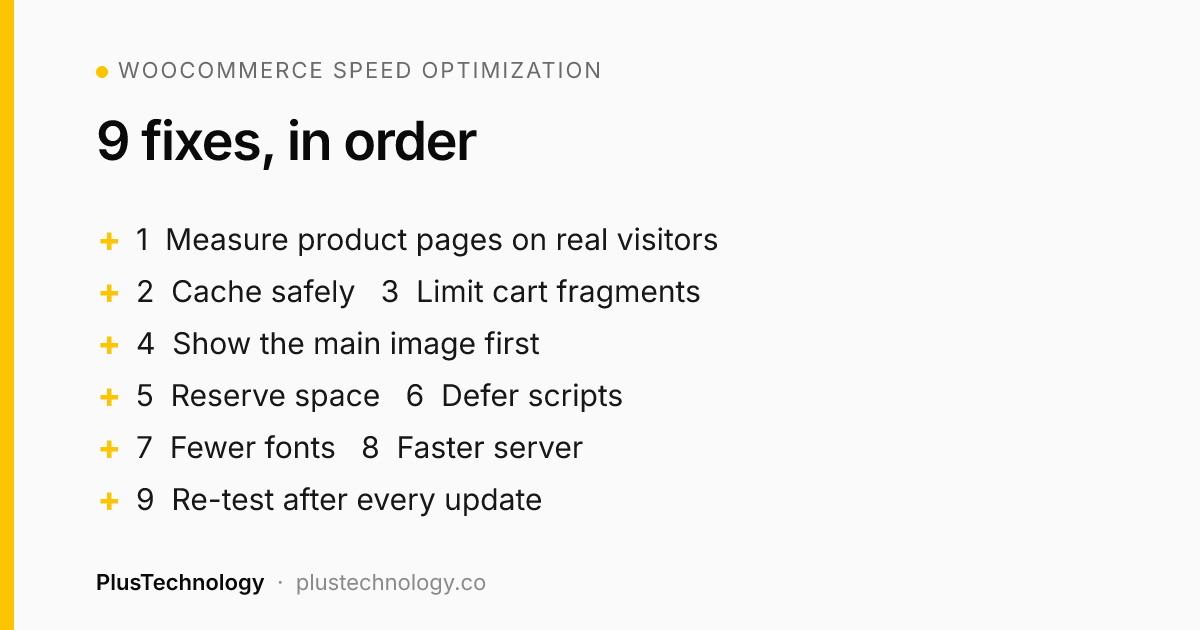
How do you speed up a WooCommerce store? 9 fixes, in order
The order matters for WooCommerce speed optimization. Measure first, take the safe server-side wins, then fix what the browser has to do.
1. Measure the right pages with real-visitor data
Open the Core Web Vitals report in Google Search Console and look at which URL groups fail. On stores it's usually product and category pages, not the homepage. Google's Core Web Vitals guidance sets the "good" targets: Largest Contentful Paint (LCP) within 2.5 seconds, Interaction to Next Paint under 200 milliseconds and Cumulative Layout Shift (CLS) below 0.1. Then run PageSpeed Insights on one URL from each failing group and note which element is the LCP. That single detail tells you where to start, and it's the step most WooCommerce performance audits skip.
2. Cache everything that's safe, and nothing that isn't
Full-page caching (LiteSpeed Cache, WP Rocket, your host's cache or a CDN) is the biggest server-side WooCommerce performance win for home, category and product pages. Check that the cart, checkout and My Account pages and the woocommerce_cart_hash, woocommerce_items_in_cart and wp_woocommerce_session_ cookies are excluded. A misconfigured cache that shows one shopper another shopper's cart is far worse than a slow page.
3. Stop cart fragments from running where they aren't needed
The cart fragments script refreshes the mini-cart with an extra AJAX request. Since WooCommerce 7.8 it only loads when a cart widget is on the page, as the WooCommerce team explains in their cart fragments best practices. Many themes still hard-code a header mini-cart, and some plugins load the script as a dependency, so check the Network tab for get_refreshed_fragments requests on every page. If the header only needs a cart count, a lighter mini-cart is often enough to speed up WooCommerce on every page.
4. Show the main image first
On most store pages the LCP element is the hero banner or the main product photo. Three mistakes delay it:
- The image is lazy-loaded, so the browser waits for a script before downloading it.
- The gallery keeps the first photo hidden until its JavaScript has run.
- An old preload tag points at an image that's no longer on the page.
For WooCommerce speed optimization on product pages, this is usually the biggest single win. Never lazy-load the first visible image, give it fetchpriority="high", serve it in WebP at the size it's displayed, and only load the other gallery photos when they're needed.
5. Reserve space so the page doesn't jump
Layout shift on stores comes from things that arrive late: the gallery, star ratings, a sticky header, a cookie banner and web fonts. Give images width and height, set a fixed height for review-star rows and banners, and make sure the cart page renders in its final layout instead of half-styled first.
6. Defer scripts, then test every product type
jQuery, sliders, chat widgets and tracking scripts often block the first paint. Deferring them is a standard way to speed up WooCommerce, but WooCommerce stores are full of small inline scripts that expect jQuery to be ready. After every change, test a simple product, a variable product, the cart and checkout with each payment method. On a large catalog, script the check across all product pages instead of spot-checking two.
7. Cut font and icon weight
Look for the same font loaded twice (theme and page builder often both load it), icon fonts used for a handful of icons, and external font files nothing uses any more. Self-host the one or two fonts you actually need and preload the main one.
8. Fix server response time on uncached pages
Cart, checkout, search, filtered category pages and logged-in visits all skip the page cache, so server-side WooCommerce performance still matters. Profile before you upgrade hosting: the slow part may be one plugin or one bad hook, not the database. Then cover the basics:
- A current PHP version and enough PHP workers for your traffic.
- An object cache (Redis or Memcached) if your host supports one.
- High-Performance Order Storage (HPOS), which keeps orders in their own tables and is the default for new stores since WooCommerce 8.2. Switch existing stores on staging first.
- A cleanup of old transients, expired sessions and completed scheduled actions.
9. Re-test after every update and redesign
Keep a short log: what changed, the measured result, and how to undo it. Re-run your key pages after plugin updates and design changes, because WooCommerce speed optimization is never finished. Many slow stores we're asked to fix were fast once, before a year of small additions.
Which WooCommerce speed optimization fix matches your symptom?
| Symptom | Likely cause | Start with |
|---|---|---|
| Product pages fail LCP in Search Console | Main photo lazy-loaded or hidden by the gallery | Fix 4 |
| Page jumps while loading | Gallery, stars, banners or fonts arriving late | Fix 5 and 7 |
| Blank screen for a second or two on mobile | Render-blocking scripts | Fix 6 |
| Cart and checkout slow, other pages fine | Slow server on uncached pages | Fix 8 |
| Extra AJAX request on every page | Cart fragments | Fix 3 |
| Everything slow, even simple pages | No page cache, or hosting at its limit | Fix 2, then 8 |
Real example: speeding up a live Dutch WooCommerce store
NAZROM, a Dutch webshop on WooCommerce, Elementor and LiteSpeed Cache, had been optimized before. Then a new hero, a redesigned header, a major WooCommerce update and new scripts made it slow again, and product pages failed Core Web Vitals. Here's what the evidence showed about its WooCommerce performance, from our NAZROM case study:
- The cookie banner was the homepage LCP at 10.6 seconds, because its script was queued behind about 90 others. Loading it early took homepage LCP to 2.1–3.8 s, with consent still recorded correctly.
- The main product photo waited for the gallery script. Showing it immediately and limiting the first download to visible photos cut main-photo time from 6.6–11.3 s to 1.7–3.3 s, and photo data from 544 KB to 102–188 KB.
- Layout shift on product pages fell from 0.23–0.60 to 0.04–0.09 after reserving space for the gallery, stars and fonts.
- A hidden server delay: imported reviews stored a city instead of a country code, so the site tried to fetch flag images that didn't exist. A small filter took uncached product pages from 3.2 s to 2.2 s.
- Fonts went from about 225 KB to 117 KB per page by removing a duplicate font, an icon font and an unused external font.
Every change went to staging first, then live, with a written undo step. When deferring scripts broke a gallery on products with options, an automated check of all 153 product pages caught it the same day. No orders were broken.
What should you avoid when you speed up WooCommerce?
- Merging all JavaScript into one file. On NAZROM's staging copy it broke 29 inline shop scripts, so it never went live.
- Turning off things that look slow but are legally needed, such as consent records for GDPR.
- Stacking optimization plugins. Two plugins minifying and deferring the same files is a common cause of broken checkouts.
- Testing only the homepage while product pages and checkout carry the revenue.
Frequently asked questions
Why is my WooCommerce store slower than a normal WordPress site?
A store does more work per visit. Cart, checkout and account pages are personal to each shopper, so they can't be served from a page cache, and product pages usually load galleries, variation scripts, review widgets, payment scripts and tracking. Each one adds weight, and they pile up with every plugin and redesign.
Is a caching plugin enough to speed up WooCommerce?
No. Page caching makes the server answer faster for pages that can be cached, but it can't fix a late-loading product photo, layout shift or heavy scripts in the browser, and it must never cache the cart, checkout or My Account pages. Caching is one fix out of several.
What are good Core Web Vitals for a WooCommerce store?
The same as any site: Largest Contentful Paint within 2.5 seconds, Interaction to Next Paint under 200 milliseconds and Cumulative Layout Shift below 0.1, measured on real visitors. Check product and category pages separately, because they usually fail before the homepage does.
Should I enable High-Performance Order Storage (HPOS)?
For most stores, yes. HPOS stores orders in their own database tables instead of the posts table, and it has been the default for new WooCommerce installs since version 8.2. On an existing store, check that every order-related plugin supports it, and switch over on a staging copy first using compatibility mode.
How long does WooCommerce speed optimization take to show in Google?
Lab tools like PageSpeed Insights show the change immediately. Search Console's Core Web Vitals report uses about 28 days of real-visitor data, so a fix takes roughly a month to be fully reflected there.
Is your store slow or failing Core Web Vitals? See our WooCommerce development services, or send PlusTechnology a link to your store on Upwork and we'll tell you what we'd check first.